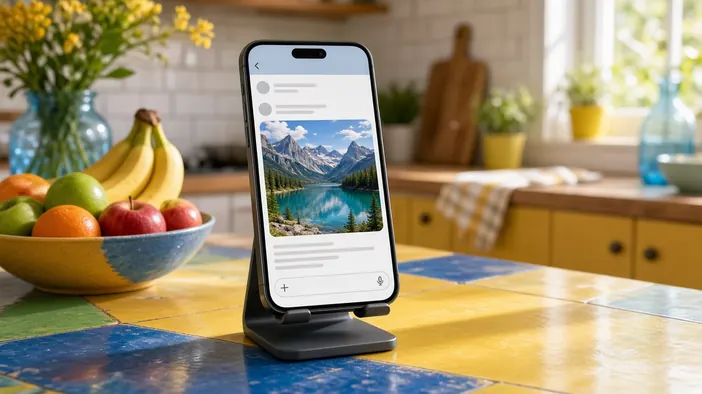
Links to a site are shared more often in messengers than found in search: a client sends one to a colleague, a manager drops one in a chat, you post one in a channel. Under the link a card appears with a title, a short description, and an image. If it is empty, cut off, or shows the wrong image, far fewer people tap it.
The good news: the preview is fully under your control. Below is how it works and what to check.
Where a preview comes from
When a link is pasted into a chat, the messenger opens the page itself and looks in its code for special Open Graph tags: title, description, image, and address. Telegram and most messengers and social networks understand them. Without these tags, the messenger tries to guess and often picks random text or a logo.
What to set for each page
- A title that makes sense without context, not just the company name
- A short description that answers "what will I find behind this link"
- A dedicated image for important pages: services, products, articles
- The correct page address, so all shares lead to the same version
The same title and description usually match or echo what shows in search, covered in more detail in SEO before launch.
What the image should be
A preview image is horizontal, and messengers crop its edges differently. So the key content goes closer to the centre, and small text on the image is avoided: it cannot be read on a phone anyway. The file should be light enough, or the preview may show up without an image.
For a blog or catalog it is handy when the preview image matches the article cover or product photo. Then nothing has to be prepared separately. Image preparation has its own post, images for a website.
Why a preview will not update
Messengers remember a link's preview and do not reread the page every time it is shared. If you changed the title or image, chats will show the old version for a while. Telegram has a service bot that refreshes a preview on request, and social networks have similar link checking tools.
To avoid this, check the preview before the link is shared for the first time: send it to your Saved Messages and look at the card.
A short checklist
- Send links to the home page, a service, and an article to yourself in a messenger
- Check the title, description, and image on each card
- See how the card looks on a phone and on a computer
- After a change, refresh the preview with the messenger's tools
Markup for previews and search is set up as part of speed and SEO. If links to your site do not look the way you want in chats, get in touch.